“`html
You pick up your LCD writing tablet. You try to write. Nothing happens. Is it broken, or is the lock on?
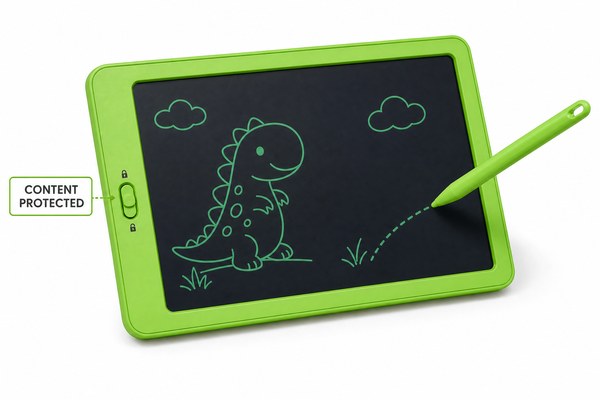
No, you cannot write on an LCD writing tablet when it is locked. The lock button disables the stylus input completely. This protects your notes from being erased or overwritten by accident. To write again, you simply press the lock button to unlock it.
I have seen so many people confused by this. They think the tablet is broken. They shake it. They press harder with the stylus. But the fix is simple. Understanding how the lock works saves you a lot of frustration. It also helps you get much more out of your tablet every single day. Let me walk you through everything I know about the lock feature on LCD writing tablets.
What Does the Lock Button Actually Do?
You press the lock button. Now nothing works. That feels wrong. But it is actually a very smart design choice.
The lock button on an LCD writing tablet freezes the screen. It stops the stylus from making any marks. It also stops the erase button from clearing the screen. Your drawing or writing stays exactly as it is until you unlock it again.
I remember the first time I saw this feature in action. I was testing a batch of tablets at our Shenzhen factory here at GY-industries. A customer had complained that their child kept erasing drawings by accident. The child would bump the erase button while carrying the tablet. Once we showed them how to use the lock button, the problem was completely solved. The drawing stayed safe. The child was happy. The parent was even happier. That small button made a huge difference. It is one of those features that sounds simple but solves a very real, everyday problem for users of all ages.
Lock Button Functions at a Glance
| Action | When Unlocked | When Locked | Why It Matters |
|---|---|---|---|
| Writing with stylus | Works normally | Does not work | Prevents accidental marks |
| Pressing erase button | Clears the screen | Does not clear | Protects saved notes |
| Carrying the tablet | Screen can change | Screen stays fixed | Safe to carry around |
| Showing notes to others | Risk of accidental erase | Notes stay visible | Great for presentations |
Why Do LCD Writing Tablets Have a Lock Feature?
Some people ask me why this feature even exists. Good question. The answer goes back to how these tablets are actually used in real life.
LCD writing tablets are used by kids, students, teachers, and office workers. Accidents happen all the time. The lock feature was added specifically to protect content from being erased by mistake. It makes the tablet more reliable and more useful in busy, everyday settings.
I have worked with many OEM and ODM clients here at GY-industries. They come to us from schools, toy brands, and office supply companies. Almost all of them ask for the lock feature. One client sold tablets to primary schools across Europe. Teachers needed to write a math problem on the tablet and show it to the whole class. Without the lock, a child could brush the erase button and the problem would disappear. With the lock on, the teacher could pass the tablet around safely. Our tablets meet CE, RoHS, and CPC certifications, so schools trust the quality too. That combination of safety and smart features is what makes a good product.
Common Use Cases for the Lock Feature
| User Type | How They Use Lock | Problem It Solves |
|---|---|---|
| Young children | Parent locks after drawing | Child cannot erase their own art |
| Teachers | Lock after writing lesson content | Students cannot accidentally clear it |
| Office workers | Lock to preserve quick notes | Notes stay safe during meetings |
| Elderly users | Lock to avoid confusion | Stops accidental screen clearing |
How to Unlock Your LCD Writing Tablet and Start Writing Again
Your tablet is locked. You want to write. You are not sure what to do next. Do not worry. It is very easy to fix.
To unlock your LCD writing tablet, simply press and hold the lock button for one to two seconds. On most models, the lock icon on the screen will disappear. You can then write normally again with the stylus. The process takes just a moment.
I always tell people to look at their tablet carefully before assuming it is broken. I have answered many support questions over the years. A large number of them were just locked tablets. According to research on user experience with digital writing tools, simple design features like lock buttons are often misunderstood by first-time users. At GY-industries, we work hard to make our LCD tablets intuitive. We also offer full after-sales support through our service page to help customers understand every feature. Our Shenzhen team tests every function before a tablet leaves the factory. That includes the lock mechanism. We want every user to have a smooth experience from day one.
Troubleshooting the Lock Feature Step by Step
| Step | What to Do | Expected Result | If It Still Does Not Work |
|---|---|---|---|
| 1 | Check for lock icon on screen | You see a small padlock symbol | Move to step 2 |
| 2 | Press and hold the lock button 1-2 seconds | Lock icon disappears | Try pressing again more firmly |
| 3 | Try writing with the stylus | Stylus makes marks on screen | Check battery level |
| 4 | Replace battery if needed | Tablet responds normally | Contact GY-industries support |
Conclusion
The lock button is a feature, not a fault. Now you know exactly how it works. Need a reliable LCD writing tablet? Contact GY-industries today for OEM and ODM solutions.
“`