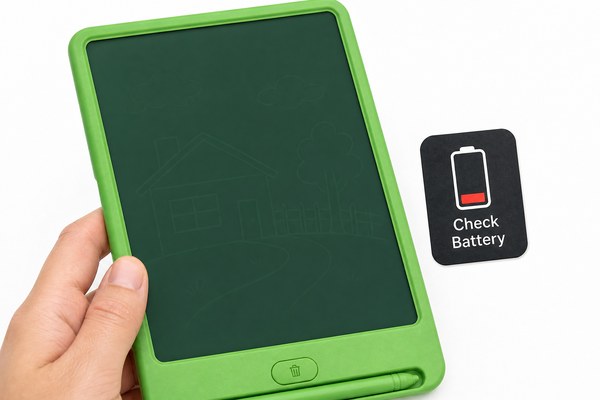
Your handwriting looks invisible on the screen. You press harder. Still nothing. This is frustrating, and I understand why.
If the handwriting on your LCD writing tablet is too faint to see, the fix is usually simple. Check the pressure you use, inspect the stylus tip, and reset the screen. Most faint-writing problems are solved in under two minutes.
I have worked closely with LCD writing tablet production for years. I have seen this complaint come up again and again. The good news is that faint handwriting is almost never a sign of serious damage. In most cases, it comes down to one of three things: how you write, the condition of your stylus, or the state of the LCD layer itself. Let me walk you through each one. By the end, you will know exactly what to do.
1. Check How Much Pressure You Are Using
You write lightly. The screen shows almost nothing. You wonder if the tablet is broken. It probably is not.
LCD writing tablets need a certain amount of pressure to create a visible line. Writing too softly means the liquid crystal layer does not react fully. Press a little firmer and your lines will appear dark and clear right away.
My Experience With Light-Handed Writers
I once had a customer contact us after buying a batch of tablets from our Shenzhen factory. She said half the units were “broken” because the writing was too faint. I asked her to send a short video. When I watched it, I could see immediately — she was barely touching the screen. Her team was used to writing on paper with very light strokes. I asked her to press a little more firmly. Every single unit worked perfectly after that. No returns, no replacements needed. It was a relief for both of us. The LCD technology we use in our tablets at GY-industries requires a consistent, moderate press to activate the crystals beneath the surface.
Pressure Levels and What They Produce
| Pressure Level | What You See on Screen | What to Do | Result |
|---|---|---|---|
| Very light touch | No line or ghost line | Press firmly but not hard | Clear, dark writing |
| Medium pressure | Normal dark lines | Keep writing as normal | Best result |
| Too much force | Thick smeared marks | Ease off a little | Clean, even lines |
| Inconsistent pressure | Lines fade in and out | Write with steady strokes | Uniform writing |
2. Inspect and Replace Your Stylus Tip
The stylus looks fine from the outside. But the tip is worn flat. Faint lines follow every single stroke you make.
A worn or damaged stylus tip spreads pressure over a wider area. This means less force hits each small point on the screen. The result is faint, washed-out writing. Replacing the tip or the stylus completely will fix this fast.
The Worn Stylus I Almost Ignored
I keep a test tablet on my desk here at the factory. One week I noticed my handwriting looked much lighter than usual. I checked all the settings. I tried pressing harder. Nothing helped much. Then I looked closely at the stylus tip under a bright light. The end was completely flat — worn down from months of daily use. I swapped it out for a new stylus. The writing came back sharp and dark immediately. It was such a small thing, but I had wasted twenty minutes looking elsewhere first. Always check the tip before anything else. According to LCD display research, localized pressure is key to how these screens create visible marks.
Stylus Tip Condition Guide
| Tip Condition | Writing Quality | Action Needed |
|---|---|---|
| New, pointed tip | Dark and crisp lines | No action needed |
| Slightly worn tip | Lines slightly thicker | Monitor and replace soon |
| Flat or chipped tip | Faint or broken lines | Replace tip now |
| Cracked or bent tip | Scratches screen surface | Stop using and replace |
3. Reset the Screen or Check for LCD Layer Issues
You have good pressure. Your stylus is brand new. But the writing is still faint. Something else is going on inside.
Sometimes the LCD layer gets stuck in a partial state. A full erase and reset usually clears this. If faint patches remain after a reset, the screen may have physical damage to the LCD layer that needs a repair or replacement.
When a Simple Reset Saved the Day
I visited one of our retail partners in Shenzhen last year. A display tablet on the shelf had patchy, faint areas across the bottom half. Staff thought it was a manufacturing fault. I picked it up and pressed the erase button to do a full reset. The screen cleared completely. I wrote on it again. The writing was dark and sharp all the way across. What had happened was simple — the tablet had been partially erased many times without a full reset. Residual charge had built up in the LCD layer. Our tablets at GY-industries carry CE, RoHS, and CPC certifications. Quality is built in. But even quality products need a proper reset from time to time. You can learn more about our after-sales service support here.
Screen Reset and Damage Troubleshooting
| Problem | Likely Cause | Quick Fix | Next Step if Not Fixed |
|---|---|---|---|
| Faint writing everywhere | Partial LCD charge | Press full erase button | Replace screen unit |
| Faint patches in one area | LCD layer pressure damage | Full erase and reset | Contact manufacturer |
| Lines disappear quickly | Weak battery or low charge | Check or replace battery | Request battery replacement |
| Screen looks cloudy overall | Temperature or humidity damage | Allow to dry at room temp | Seek professional repair |
Conclusion
Faint handwriting is easy to fix. Check your pressure, your stylus, and reset the screen. Still having trouble? Contact GY-industries today for expert help.