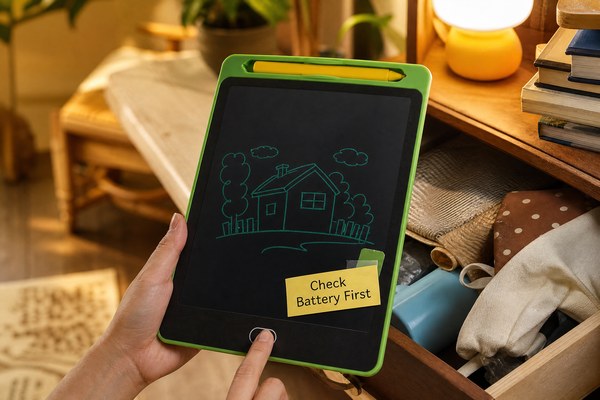
You grab your LCD writing tablet after weeks of storage. You press the erase button. Nothing happens. That is so frustrating.
LCD writing tablets can stop erasing after long storage due to battery drain, temperature damage, or pressure lock on the liquid crystal layer. The erase button needs enough power to send a charge pulse. Without that pulse, the screen stays frozen. A fresh battery usually fixes this fast.
I have seen this problem come up again and again. Customers pull out a tablet after a summer vacation or a long holiday. They expect it to work perfectly. Instead, they get a stuck screen. The good news is that most of these cases are totally fixable. I want to walk you through exactly what causes this and what you can do about it. Understanding the real reason saves you time and money. Let me break it down into three clear sections.
The Battery Is the Most Common Reason Your Tablet Won’t Erase
Your tablet worked fine before storage. Now nothing responds. That dead feeling usually starts with one small part — the battery.
LCD writing tablets use a small coin cell battery to power the erase function. When a tablet sits unused for months, that battery slowly drains. Once the voltage drops too low, the erase circuit cannot fire. The screen image stays locked in place, even though the tablet looks fine on the outside.
I remember a wholesale customer who ordered a large batch from our Shenzhen factory. They stored the units in a warehouse for about six months before distribution. When they finally tested them, almost all the tablets would not erase. I asked them to check the batteries first. Every single unit had a drained CR2016 or CR2025 coin cell. We replaced the batteries and every tablet worked perfectly. That experience taught me to always tell customers to remove batteries during long storage. At GY-industries, we now include storage guidance with every OEM shipment. It is such a simple fix but so easy to overlook. Fresh batteries solve this problem in under two minutes.
Battery Performance by Storage Duration
| Storage Duration | Typical Battery Level | Erase Function Status | Recommended Action |
|---|---|---|---|
| 1–4 weeks | 80–100% | Works normally | No action needed |
| 1–3 months | 50–80% | May work, may be slow | Test before use |
| 3–6 months | 20–50% | Unreliable erasing | Replace battery soon |
| 6+ months | Below 20% | Erase button fails | Replace battery immediately |
Extreme Temperatures During Storage Can Damage the Liquid Crystal Layer
You stored your tablet in a hot car or a freezing garage. Now it will not erase no matter what. Temperature damage is a real problem.
LCD writing tablets use a layer of liquid crystal microcapsules. These tiny capsules react to electrical charges to erase the screen. Very high or very low temperatures can harden or distort these microcapsules permanently. Once that happens, the erase pulse cannot move them. The image becomes stuck, and no battery change will fix it.
I once handled a warranty claim from a school in a hot climate. They stored their tablets over summer break inside metal storage lockers. Those lockers reached extreme temperatures during the hottest months. When school started again, many tablets had patches that simply would not clear. Some had full ghost images burned across the whole screen. We inspected samples back at our factory in Shenzhen. The liquid crystal layer had been stressed beyond its limit. Our GY-industries tablets carry CE and RoHS certifications, and we specify an operating range of 0°C to 50°C. Storage outside that range causes physical damage. No repair is possible in severe cases. Prevention is everything here.
Temperature Effects on LCD Writing Tablet Performance
| Temperature Range | Effect on Liquid Crystal | Erase Function Result | Recovery Possible? |
|---|---|---|---|
| 0°C – 50°C (ideal) | No damage | Works correctly | Not needed |
| -10°C – 0°C (cold) | Crystals may stiffen | Slow or partial erase | Yes, warm up slowly |
| 50°C – 65°C (hot) | Crystals begin to distort | Patchy or no erase | Sometimes, with rest |
| Above 65°C (extreme) | Permanent crystal damage | Complete erase failure | No, unit is damaged |
For more details on how liquid crystal display technology works at a physical level, you can read this overview from Explain That Stuff’s guide to LCD science. It helps to understand what is happening inside the tablet.
Pressure Lock and Screen Stress Can Also Freeze the Display
Your tablet was stored under a pile of books or inside a tight bag. Now there are permanent marks. Pressure is a sneaky cause of erase failure.
The writing surface on an LCD tablet is pressure-sensitive by design. That is how it records marks. But constant heavy pressure during storage can push the liquid crystals into a fixed position. The erase button sends a pulse to reset them. If the crystals are physically compressed and locked, that pulse may not be strong enough to move them back.
I have seen this happen with kids’ tablets especially. Parents pack them into school bags with heavy textbooks on top. After a long holiday, the tablet comes out with strange blotchy marks all over it. The erase button does nothing for those spots. I tested this myself with a sample unit from our OEM production line. I placed a firm object on the screen for 72 hours. Afterward, the affected area would not erase cleanly. The rest of the screen was fine. This told me the issue was purely mechanical pressure, not electronics. At GY-industries, we design our tablets with a hardened outer layer to reduce this risk. But no tablet is fully immune to sustained, heavy compression over long periods.
Common Storage Mistakes and Their Effects
| Storage Mistake | What It Does | Visible Symptom | Prevention Tip |
|---|---|---|---|
| Storing under heavy objects | Compresses liquid crystal layer | Blotchy stuck marks | Store flat with nothing on top |
| Leaving in a tight bag | Bends the screen slightly | Lines or partial freeze | Use a rigid case or sleeve |
| Stacking multiple tablets | Edge pressure on screen | Corner marks that won’t clear | Use separators between units |
| Leaving writing on screen | Crystals stay in written state | Ghost image after storage | Always erase before storing |
If you are buying in bulk and need advice on proper packaging and storage for your branded tablets, our team is ready to help. Visit our GY-industries service page to see how we support OEM and ODM partners from production all the way through to delivery and after-sales care.
Conclusion
Most erase failures after long storage come down to three things: dead battery, temperature damage, or pressure. Start with a fresh battery. Store your tablet safely. If you need reliable OEM LCD writing tablets built to last, contact GY-industries today.